
Create Your First Page
Build a small title interface on Main Page and check it in Dev Mode.
New projects include Main Page. This guide edits that page, adds a background, a title, and a button, then checks the result in Dev Mode.
Build the page
Open Main Page
Select UI on the left activity bar, set the interface type to Page, and open Main Page.
The page opens in the center editor: the UI Outline on the left, the canvas in the center, Properties on the right, and the insert bar below the canvas.
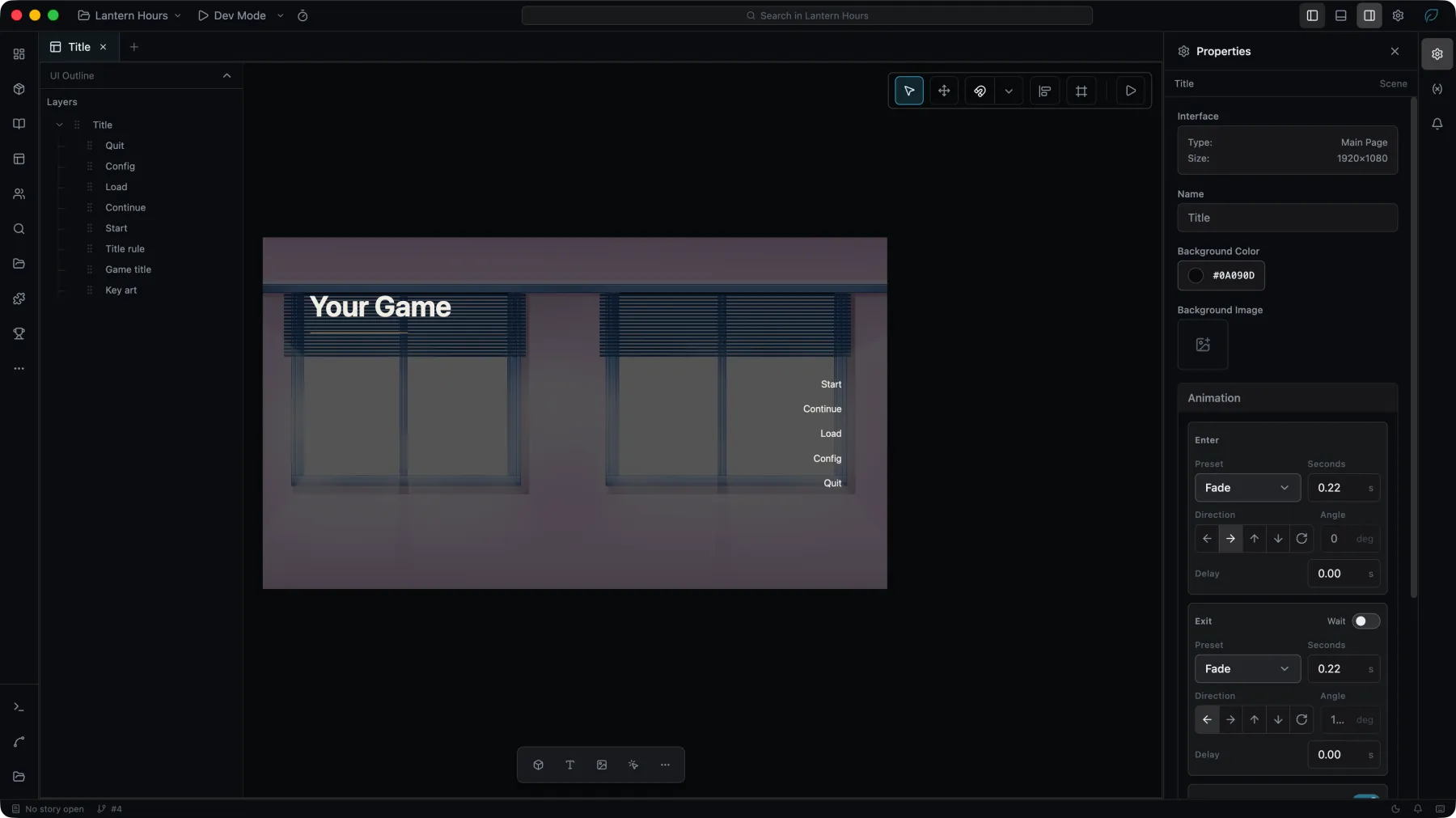
Add a background container
Choose Container from the insert bar, then click or drag on the canvas. With the container selected, set its position, size, and background in Properties.

For an image background, drag an image asset onto the canvas. Studio creates an Image widget linked to that asset.
Add a title

Choose Text from the insert bar and place it on the canvas. Double-click the text to edit it in place, and set its font, size, color, and alignment in Properties.
Drag a widget to move it, and use its handles to resize it. Smart Snap aligns widgets with canvas edges, center lines, and nearby widgets.
Add a button
Choose Button and place it on the canvas, then set its label and appearance. Its behavior is connected later in the widget Blueprint, and a layout check needs no event binding.
Use the UI Outline
The UI Outline shows the widget hierarchy. Containers own other widgets, and their children move with them. The outline also reaches widgets that overlap or are too small to select on the canvas.
Right-click a widget to rename it, show or hide it, change its stacking order, or add the selection to the component library. Create a component when a group of widgets is ready to be reused.
Undo and saving
Ctrl+Zundoes andCtrl+Shift+Zredoes.Ctrl+CandCtrl+Vcopy and paste widgets.- Deleting a page removes all of its widgets. The entry page cannot be deleted; make another page the entry page first.
- Page data is stored in the project's UI document. There is no separate save step.
Check the page
Choose the play button in the upper-right corner of the canvas to open the current page in Dev Mode. Dev Mode uses the real runtime and reports scale, interaction, and Blueprint behavior.
Main Page is the project's entry page, the first thing the game shows when it launches. Any other page can take its place with Set as Entry Page; see UI. How pages, Game UI and layers are stacked while the game runs is covered in Interfaces at run time.
Continue with Run and Package.