
Example: Rock, Paper, Scissors
A complete plugin that puts a rock, paper, scissors game on the stage when the story reaches its row, holds the story until the round is decided, and branches the story on the result.
This page builds one plugin from an empty folder to a played scene. The plugin adds a story action, Rock, Paper, Scissors. When the story reaches that row, the game appears on the stage and the story stays on the row until the player wins or loses. The result goes into a saved variable, and an /if row after it sends the story one way or the other.
It uses three parts of the plugin API:
| Part | Entry | What it does here |
|---|---|---|
app.services.story.actions | studio | Adds the action to the scene editor and writes the row. |
app.game.storyActions | runtime | Runs when the story reaches the row. The story waits for it. |
app.game.ui.overlay and app.game.state | runtime | Draws the game over the stage and writes the result into the story's variable. |
Read Make a Plugin first if you have not set up a plugin before. This page assumes its template.
The files
Copy the template into a folder named rps and run yarn install. Keep its build.mjs, tsconfig.json and package.json (rename the package). Delete src/nodes.ts, src/main.ts and src/runtime.ts: this plugin adds no blueprint nodes, and the two entries are replaced below.
1. The manifest
{
  "manifestVersion": 2,
  "id": "yourname.rps",
  "name": "Rock, Paper, Scissors",
  "version": "1.0.0",
  "publisher": "Your Name",
  "description": "A rock, paper, scissors mini-game that the story waits on.",
  "entries": { "studio": "main.js", "runtime": "runtime.js" },
  "contributes": {
    "runtimeCapabilities": ["ui.overlay", "state.read", "state.write"]
  },
  "permissions": []
}- Both entries are needed. The studio entry adds the action to the scene editor; the runtime entry runs it in the game.
ui.overlaylets the runtime entry draw over the stage.state.readandstate.writelet it write the result into a story variable.- A story action is not declared in
contributes. Its id must start with the plugin id.
The install prompt lists the three capabilities and nothing else.
2. Shared ids
Both entries name the action by the same id, so it lives in a module they share.
// Shared by both entries: the ids, and how a row's params are read back.

export const PLUGIN_ID = "yourname.rps";
export const PLAY_ACTION = `${PLUGIN_ID}.play`;

export type PlayParams = {
    /** The saved variable that receives "win" or "lose". */
    variable: string;
};

export function readParams(params: Record<string, unknown>): PlayParams {
    return { variable: typeof params.variable === "string" ? params.variable : "" };
}
3. The story action
The studio entry registers the action the author inserts.
import { definePlugin, type StoryBlock } from "narraleaf-studio/plugin";
import { PLAY_ACTION, PLUGIN_ID, readParams } from "./action";

export default definePlugin({
    setup(app) {
        app.services.story.actions.register({
            id: PLAY_ACTION,
            label: "Rock, Paper, Scissors",
            detail: "Play a round on the stage and store the result in a saved variable.",
            // The text typed after the command is the name of the variable to write.
            createBlock: ({ generateId, initialText }): StoryBlock => ({
                id: generateId(),
                kind: "action",
                parentId: null,
                childrenIds: [],
                payload: {
                    action: "plugin",
                    pluginId: PLUGIN_ID,
                    actionId: PLAY_ACTION,
                    params: { variable: (initialText ?? "").trim() },
                },
            }),
            describe: params => {
                const { variable } = readParams(params);
                return variable
                    ? `Rock, Paper, Scissors → ${variable}`
                    : "Rock, Paper, Scissors (no variable)";
            },
        });
    },
});createBlockreturns the plugin's own row:action: "plugin"with the plugin id, the action id and the params. Any JSON value can go inparams.initialTextis the text the author types after the command. This action reads it as the name of the variable that receives the result.describeis the text the row shows in the scene editor. Without it the row showslabel, and the variable name would not be visible.
While a scene contains this row, the project depends on the plugin, and every run and build of the project includes it.
4. The game
The game is an ordinary React component. React comes from the host, so the component uses react like any other module and the build leaves it external.
import { useEffect, useState, type CSSProperties } from "react";

export type Hand = "rock" | "paper" | "scissors";
export type Outcome = "win" | "lose";

const HANDS: { hand: Hand; label: string; symbol: string }[] = [
    { hand: "rock", label: "Rock", symbol: "✊" },
    { hand: "paper", label: "Paper", symbol: "✋" },
    { hand: "scissors", label: "Scissors", symbol: "✌️" },
];

const BEATS: Record<Hand, Hand> = { rock: "scissors", paper: "rock", scissors: "paper" };

/** How long both hands stay on screen before the round ends or starts again. */
const REVEAL_MS = 1200;

type Round = { player: Hand; opponent: Hand };

function judge({ player, opponent }: Round): Outcome | "draw" {
    if (player === opponent) {
        return "draw";
    }
    return BEATS[player] === opponent ? "win" : "lose";
}

function symbolOf(hand: Hand): string {
    return HANDS.find(entry => entry.hand === hand)!.symbol;
}

export function RpsGame({ onFinish }: { onFinish: (outcome: Outcome) => void }) {
    const [round, setRound] = useState<Round | null>(null);

    useEffect(() => {
        if (!round) {
            return;
        }
        const result = judge(round);
        const timer = setTimeout(() => {
            if (result === "draw") {
                setRound(null);
            } else {
                onFinish(result);
            }
        }, REVEAL_MS);
        return () => clearTimeout(timer);
    }, [round, onFinish]);

    const play = (player: Hand) => {
        const opponent = HANDS[Math.floor(Math.random() * HANDS.length)].hand;
        setRound({ player, opponent });
    };

    const result = round ? judge(round) : null;

    return (
        <div style={styles.backdrop}>
            <div style={styles.panel}>
                <div style={styles.title}>Rock, Paper, Scissors</div>
                {round ? (
                    <>
                        <div style={styles.hands}>
                            <span>{symbolOf(round.player)}</span>
                            <span style={styles.versus}>vs</span>
                            <span>{symbolOf(round.opponent)}</span>
                        </div>
                        <div style={styles.result}>
                            {result === "win" ? "You win!" : result === "lose" ? "You lose." : "Draw. Again!"}
                        </div>
                    </>
                ) : (
                    <div style={styles.choices}>
                        {HANDS.map(({ hand, label, symbol }) => (
                            <button key={hand} type="button" style={styles.choice} onClick={() => play(hand)}>
                                <span style={styles.symbol}>{symbol}</span>
                                <span>{label}</span>
                            </button>
                        ))}
                    </div>
                )}
            </div>
        </div>
    );
}

// Sizes are in container units of the backdrop, which covers the stage, so the game scales with it.
const styles: Record<string, CSSProperties> = {
    backdrop: {
        position: "absolute",
        inset: 0,
        containerType: "size",
        display: "flex",
        alignItems: "center",
        justifyContent: "center",
        background: "rgba(0, 0, 0, 0.45)",
        // The overlay layer lets clicks through; the game takes them for itself.
        pointerEvents: "auto",
        fontFamily: "sans-serif",
        color: "#fff",
    },
    panel: {
        display: "flex",
        flexDirection: "column",
        alignItems: "center",
        gap: "4cqh",
        padding: "5cqh 6cqw",
        borderRadius: "2cqh",
        background: "rgba(20, 24, 32, 0.92)",
    },
    title: { fontSize: "5cqh", fontWeight: 600 },
    choices: { display: "flex", gap: "3cqw" },
    choice: {
        display: "flex",
        flexDirection: "column",
        alignItems: "center",
        gap: "1cqh",
        width: "16cqw",
        padding: "3cqh 0",
        border: "none",
        borderRadius: "1.5cqh",
        background: "rgba(255, 255, 255, 0.12)",
        color: "inherit",
        fontSize: "3cqh",
        cursor: "pointer",
    },
    symbol: { fontSize: "9cqh" },
    hands: { display: "flex", alignItems: "center", gap: "4cqw", fontSize: "12cqh" },
    versus: { fontSize: "4cqh", opacity: 0.7 },
    result: { fontSize: "4.5cqh" },
};- The overlay covers the stage and ignores the pointer. The backdrop sets
pointerEvents: "auto", so the buttons take clicks and a click elsewhere on the stage does not reach the dialogue. - The stage is drawn at the size of the window, so the sizes are in container units of the backdrop rather than in pixels.
- A draw starts the round again. The component reports only
"win"or"lose".
5. Running the row
The runtime entry registers what happens when the story reaches the row, under the same action id.
import { defineRuntimePlugin } from "narraleaf-studio/runtime";
import { PLAY_ACTION, readParams } from "./action";
import { RpsGame, type Outcome } from "./RpsGame";

export default defineRuntimePlugin({
    setup(app) {
        app.game.storyActions.register({
            id: PLAY_ACTION,
            // The story stays on the row until this promise settles.
            run: ({ params, signal, game }) => new Promise<void>(resolve => {
                const { variable } = readParams(params);
                const overlay = game.ui?.overlay;
                if (!overlay) {
                    game.log("warning", "ui.overlay is not available here; the round is skipped.");
                    resolve();
                    return;
                }

                let settled = false;
                const settle = () => {
                    if (settled) {
                        return;
                    }
                    settled = true;
                    unmount();
                    resolve();
                };

                const finish = (outcome: Outcome) => {
                    if (!signal.aborted && variable) {
                        game.state?.set?.("saved", variable, outcome);
                    }
                    settle();
                };

                const unmount = overlay.mount(() => <RpsGame onFinish={finish} />);

                // Rolled back past the row, or a save was loaded: take the game off the stage.
                signal.addEventListener("abort", settle, { once: true });
            }),
        });
    },
});
What the game does with the row:
- The story waits. The next row starts when the promise
runreturns has settled. Clicks on the stage, the advance keys, auto mode and skipping do not move past the row. - The result reaches the story through
game.state.set("saved", variable, outcome). It is written before the promise resolves, so the row after this one already reads it. - The game draws over the stage through
overlay.mount. The render function returns an element of the plugin's own component, so the component keeps its state between renders. The cleanupmountreturns takes it off the stage. signalis aborted when the player rolls back past the row or loads a save while the game is on the stage. The plugin removes the game and writes nothing.- A save taken while the game is on the stage plays the row again when it is loaded: the game appears from the start.
- A throw inside
runis written to the game log and the story continues.
game.ui is absent where there is no stage, so the guard at the top lets the story continue without a round.
6. Build and install
yarn builddist/ now holds manifest.json, main.js and runtime.js. Install it with Install from folder in the Launcher's Plugins page and approve the prompt. The steps are on Install a Plugin.
7. Use it in a story
Declare the variable
Open Variables and add a variable under Saved variables. Name it rpsResult and set its type to String.
Insert the row
In the scene, on a new row, type /rock rpsResult and press Enter. The row reads Rock, Paper, Scissors → rpsResult.
Typing /rock alone lists the action in the command menu. The word after the command is the variable name, so the row can also be written for any other saved variable.
Branch on the result
On the next row, type /if rpsResult == "win" and press Enter. Add the lines for a win under If. On the Condition row, choose Else and add the lines for a loss under it.
Text values in a condition are written in double quotes.
Play it
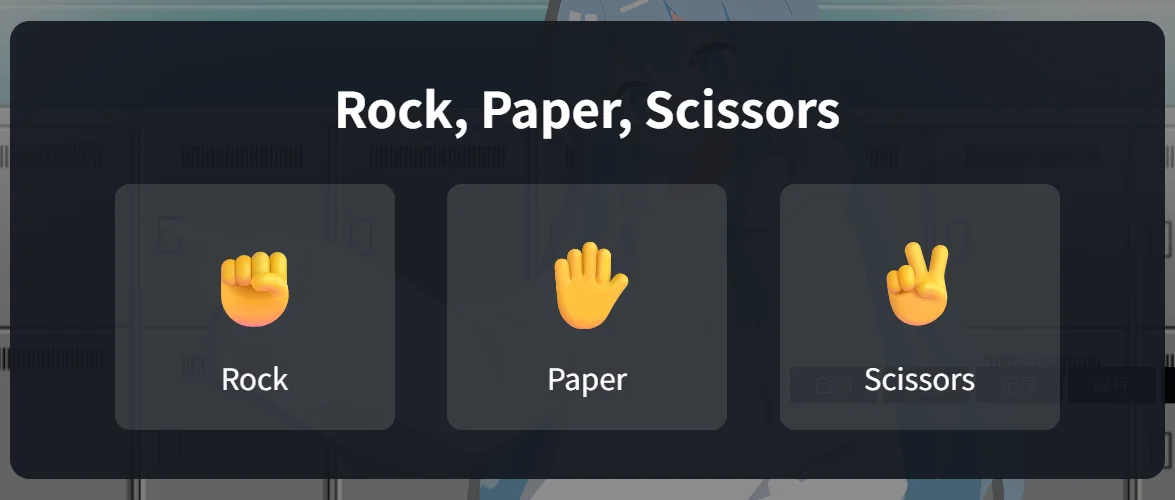
Press Play from this row on a line before the game, or run the project in Dev Mode. When the story reaches the row, the game appears on the stage. After a win or a loss the game leaves the stage and the story continues in the matching branch.
Where to go from here
- A different game uses the same shape: a story action that writes the row, a
runthat mounts a component and resolves when it is done, and a variable for the result. - To give the result to more than one variable, or to read settings from the row, put more keys in
paramsand show them indescribe. - To let the author change the variable after the row is inserted, declare it in the registration's
paramsas astringfield; the Properties panel then shows it on the row. See Fields in the Properties panel (Studio 1.6.0 and later). - The reference for each part: story,
game.storyActions, ui.overlay and state.